Router Configuration
ZTE U60 - Configuration Guide
Step 1: Unboxing and SIM Installation
Unbox the device and verify all components are present: router, charging cable, and quick start guide.
The device requires a NANO SIM card - insert this into the SIM/RESET slot on the left side of the device. There will be a diagram above the slot indicating which way the SIM should go, simply match the alignment of the diagonal notch with the diagram and slide the SIM into place.
On the back of the router is a sticker with your WiFi and Admin Login details. Make a note of the following information:
| Item | Description | Example |
|---|---|---|
| WiFi SSID | Network name visible when scanning for wireless connections | ZTE_CBD6F9 |
| WiFi Key | The network password required for device connection | — |
| Device Manager Website | URL to access router configuration | http://192.168.0.1 |
| Password | Administrative login credential (case-sensitive); distinct from WiFi password | — |
Step 2: WiFi Connection
Power on the device and establish WiFi connectivity:
- Open your device's Wi-Fi settings menu.
- Locate the ZTE network name from the sticker.
- Enter the corresponding WiFi Key when prompted.
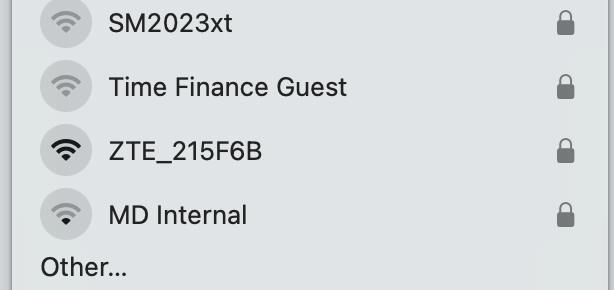
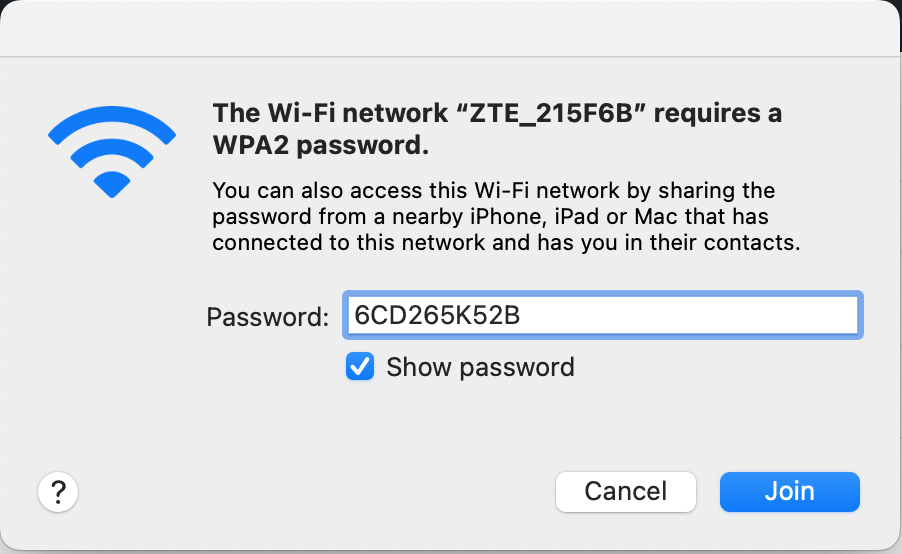
This connection is essential — many configuration issues stem from attempting setup without an active WiFi connection to the router.
Step 4: Interface Access and Configuration
Open any web browser and navigate to http://192.168.0.1
You should see a login screen - the login screen will request the Password from the device sticker.
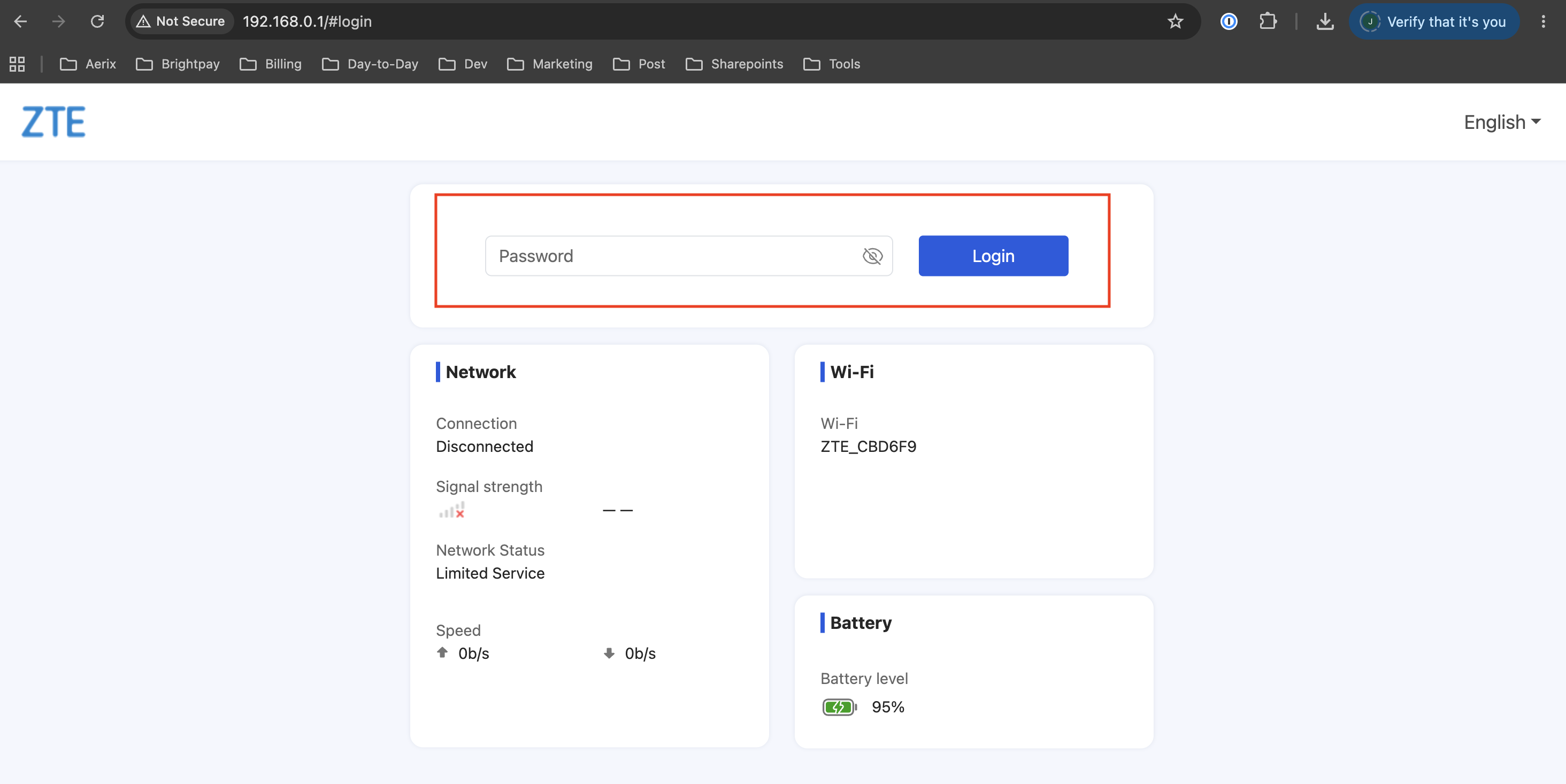
Once authenticated, the dashboard will load - the dashboard displays the general status of the router, as well as a selection of settings menus along the left
To configure the router to use our IQ Mobile SIMs, select Network from the left.
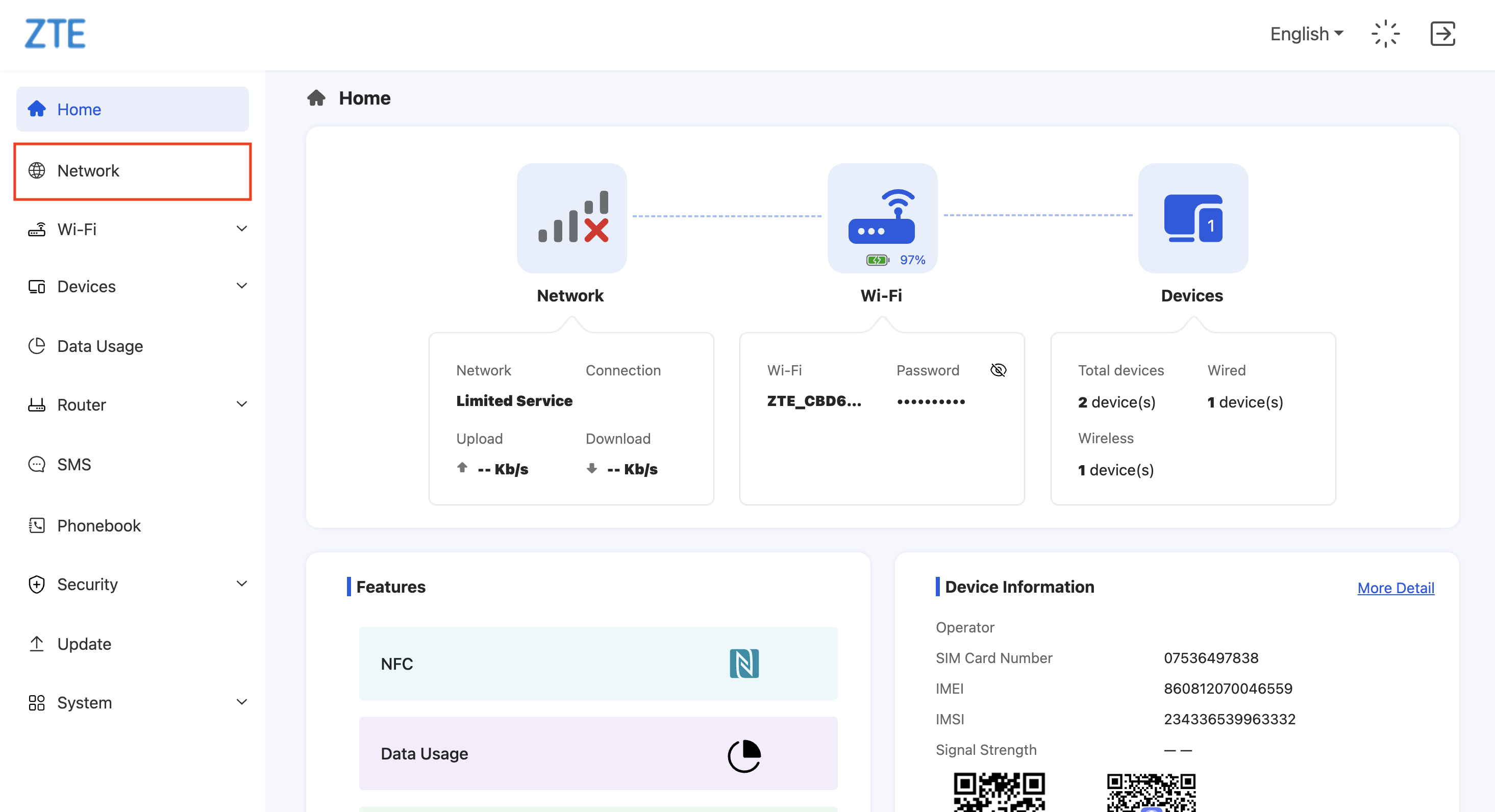
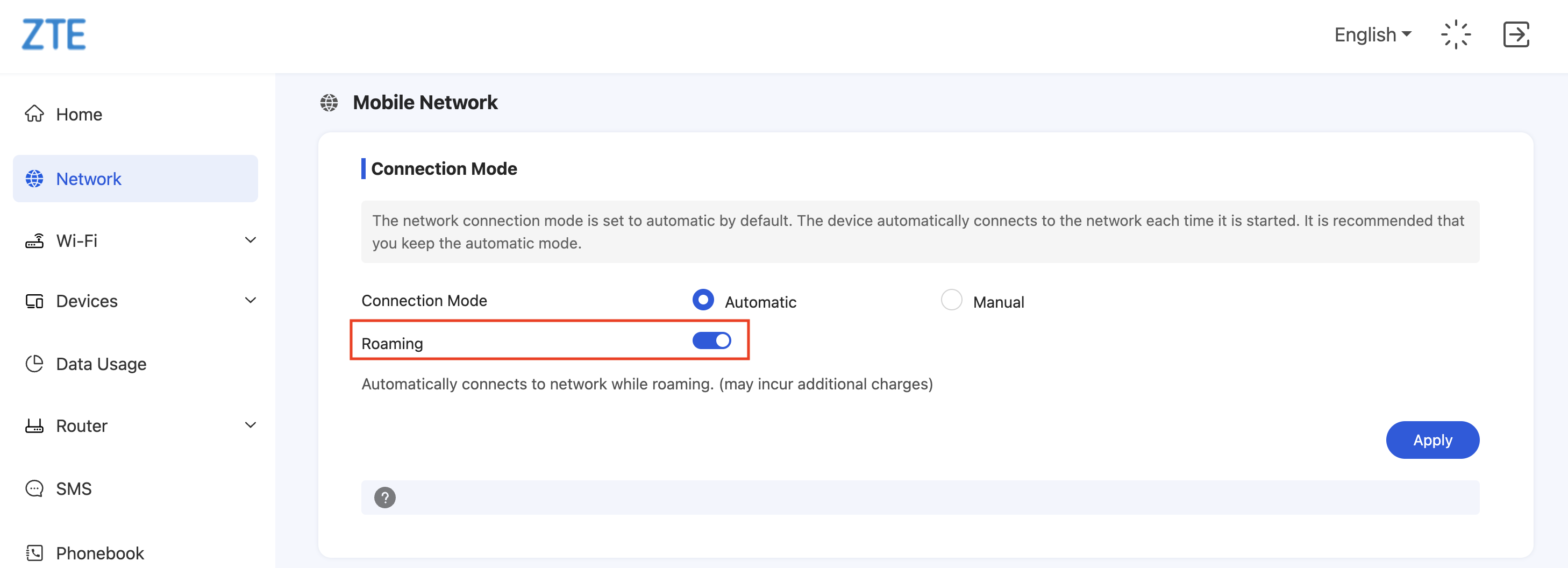
Network Settings: Data Roaming
Under the Connection Mode section, enable the Roaming checkbox. IQ Mobile data SIMs offer roam-like-home service throughout Europe without additional charges.
Network Settings: APN
Scroll to the bottom of the Network tab to find the APN section
The APN Mode will be set to Auto by default - if the Current APN shows everywhere then nothing needs to be done, otherwise you can create a new APN profile by setting the APN Mode to Manual:
Pressing the + symbol will let you fill out the profile details:
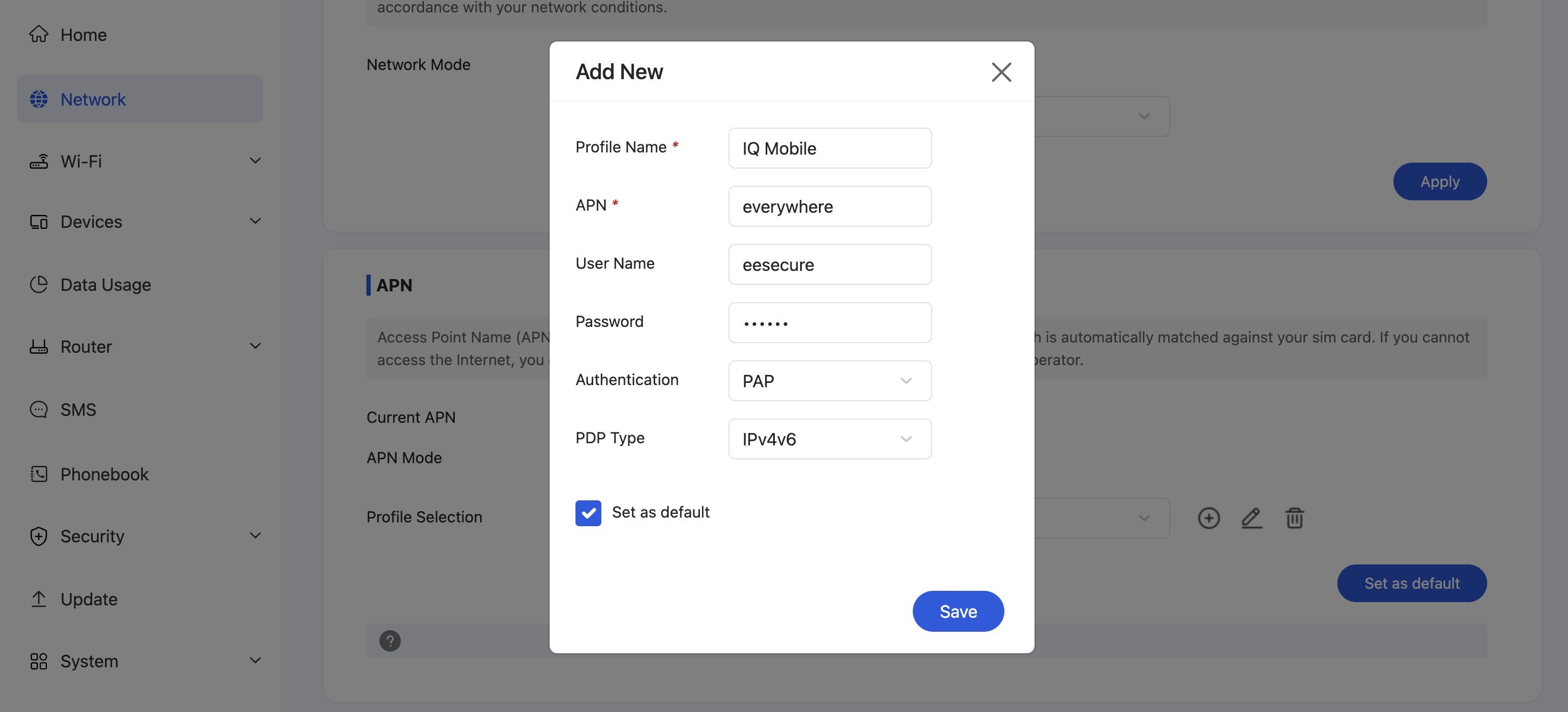
Use the details in the table below, and leave anything unspecified as its default value:
| Field | Value | Notes |
|---|---|---|
| Profile Name | IQ Mobile | This setting is purely cosmetic, and is used to label the profile for your convenience |
| APN | everywhere | - |
| Authentication | PAP | - |
| Username | eesecure | - |
| Password | secure | - |
Press Set As Default and then Save - the device should update
For multiple SIM profiles, you can manually add and store additional APN configurations by selecting the + symbol and saving profiles for future switching. Swap between your profiles using the Profile Selection dropdown list.
Network Settings: Network Selection
While roaming, you may run into issues with coverage/signal strength/speed in certain areas. In such an event, you'll want to try roaming on another network - most MiFi devices will try to select the best network, but sometimes you'll have to choose this manually.
Go to the Connection Mode section and set the Connection Mode setting to Manual:
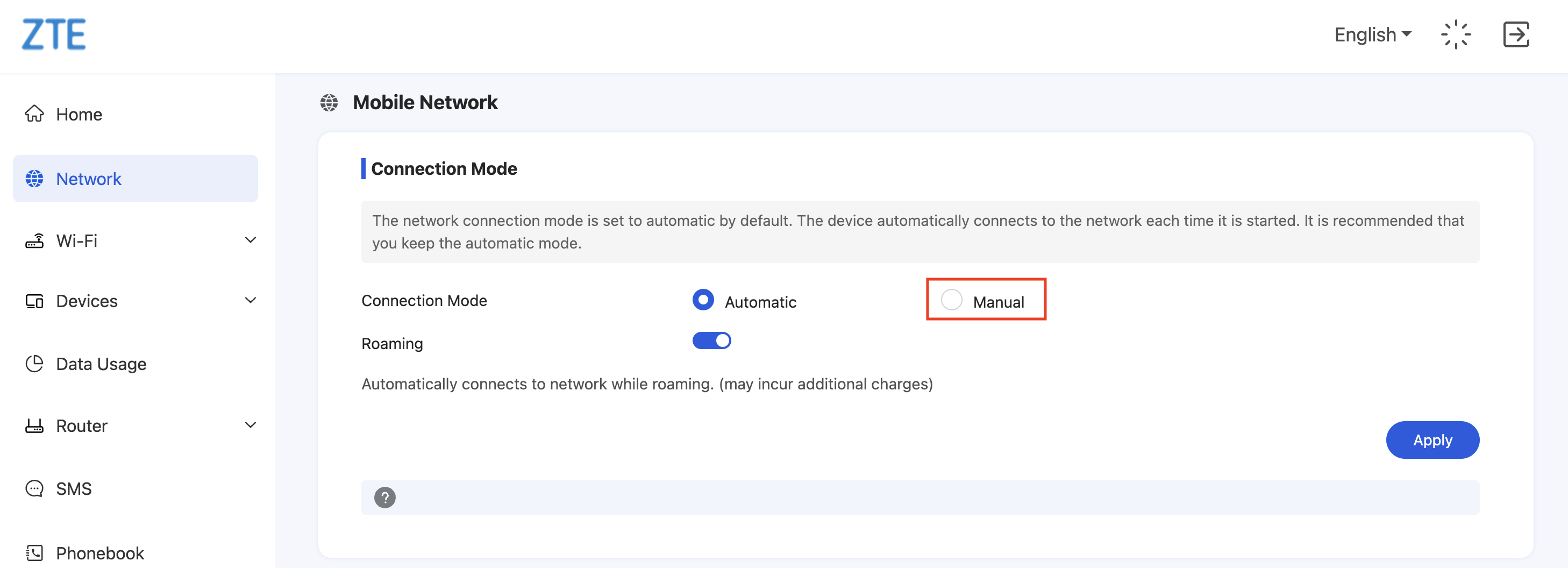
You'll be presented with a list of networks - select the network you wish to roam on, and Save.
Need a SIM for this router?
Every router in these guides takes a standard data SIM. Touring in a caravan or motorhome? A Travel SIM keeps you online across Europe too.
Still need help?
Our UK-based team is here for you