Router Configuration
ZTE MU5120 — Configuration Guide
Step 1: Unboxing and SIM Installation
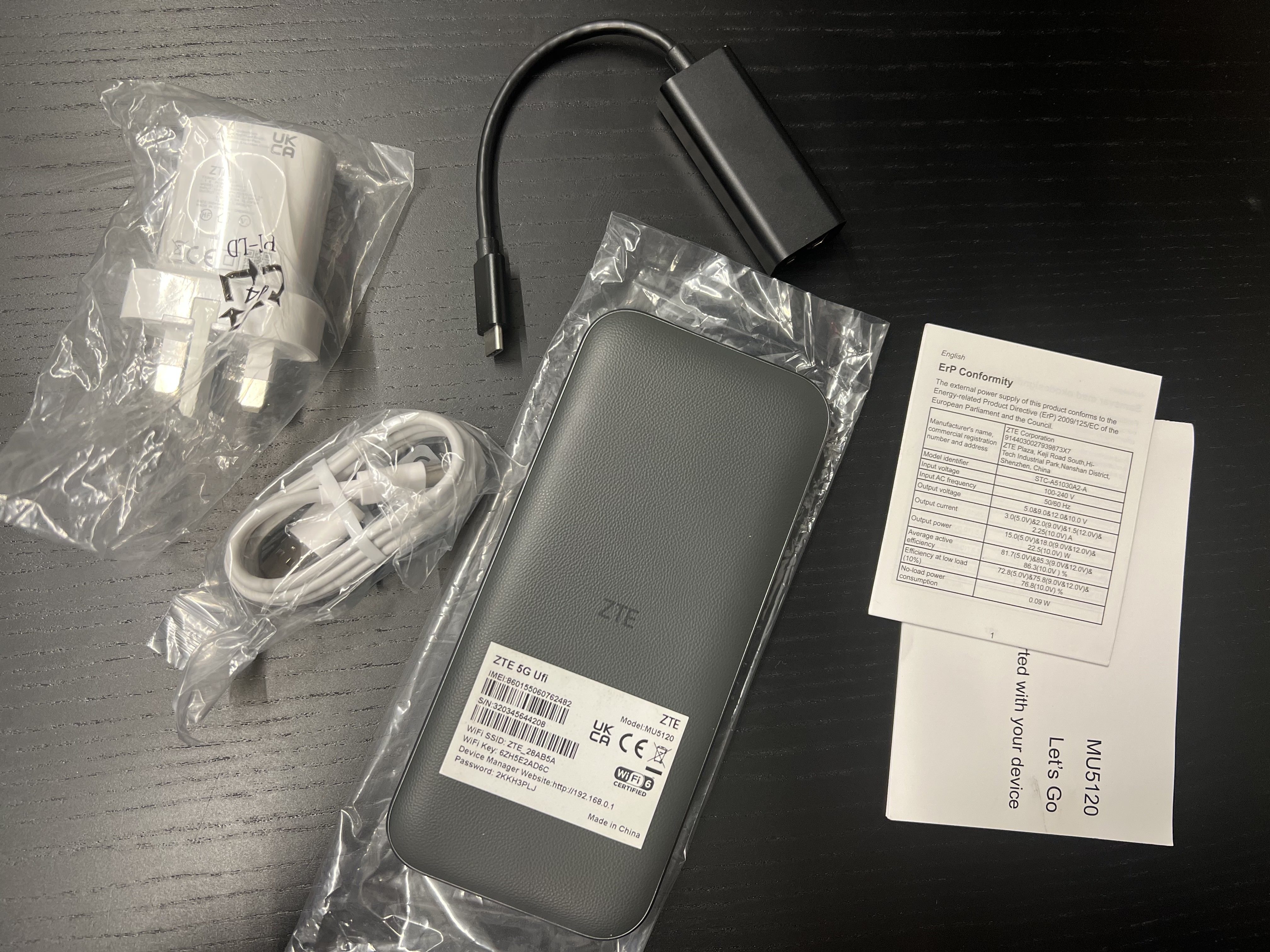
The package includes: router, charging cable with adapter, quick start guide, and USB-to-Ethernet adapter.
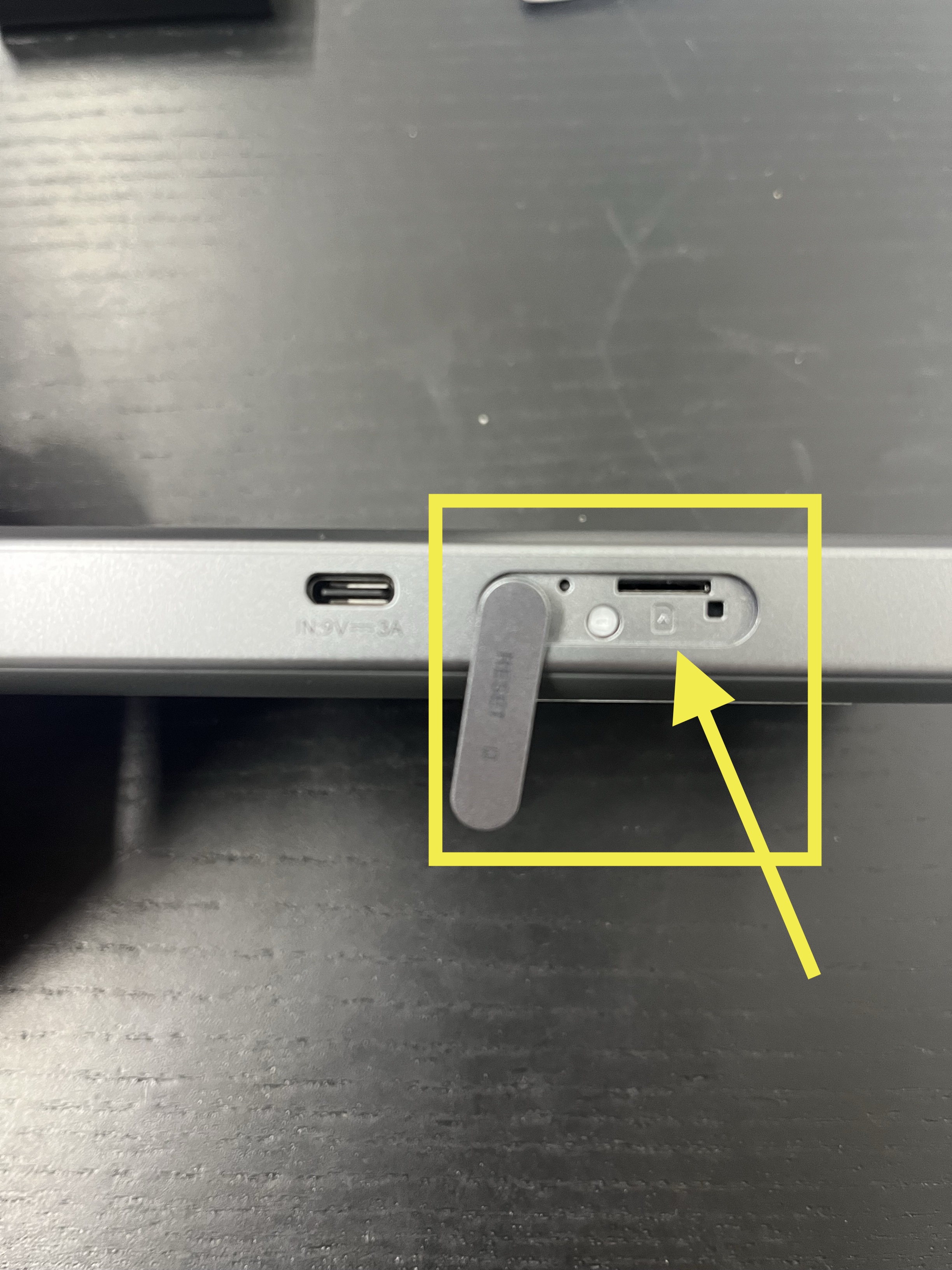
- Locate the "RESET" flap on the left side when the device is flat, screen facing up.
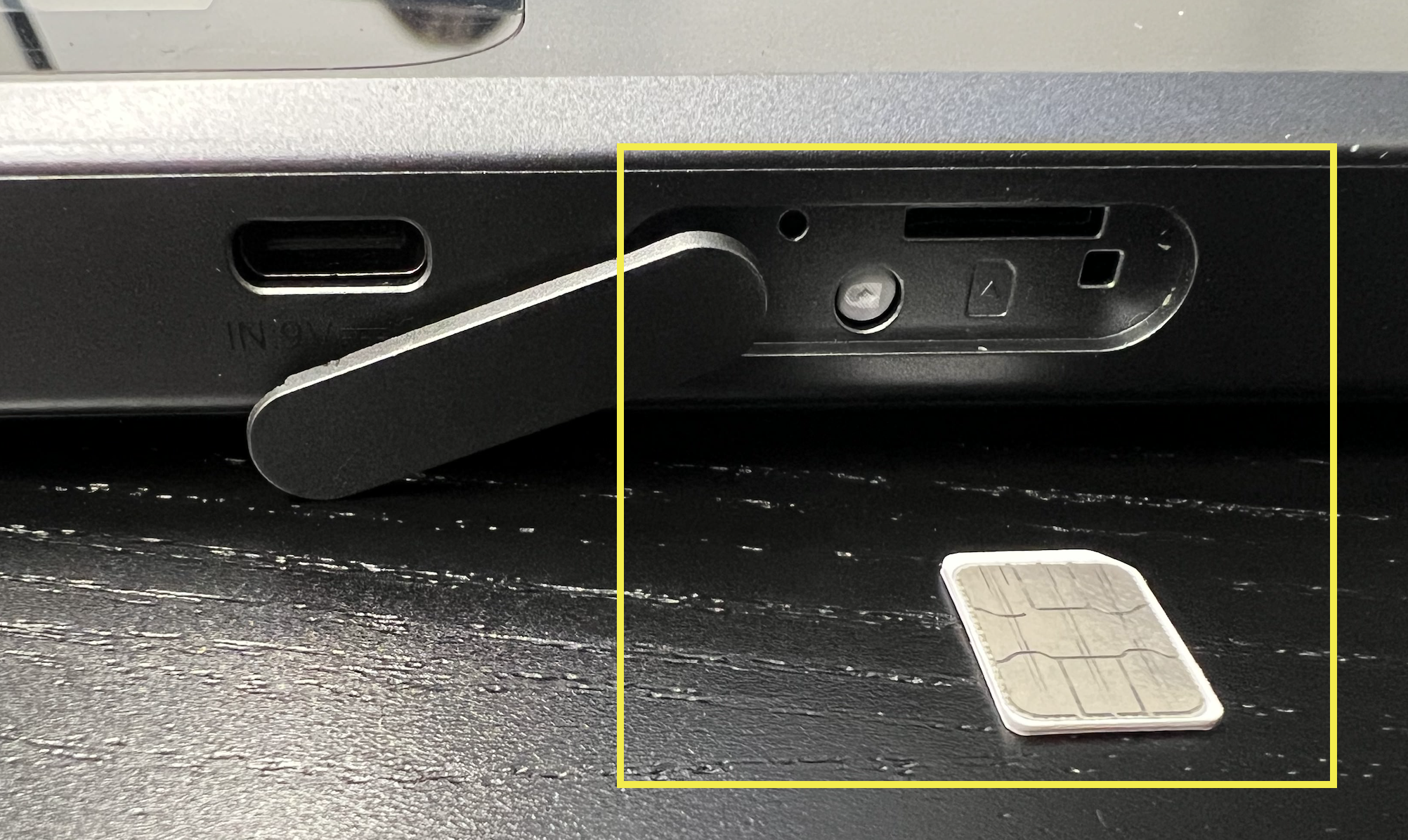
- Use a NANO SIM (smallest version from original housing).
- The SIM fits only one way — a corner is cut off as a guide.
- Insert firmly until seated.
Step 2: Power On and Locate Key Information
Turn on the device using the power button on the right side.
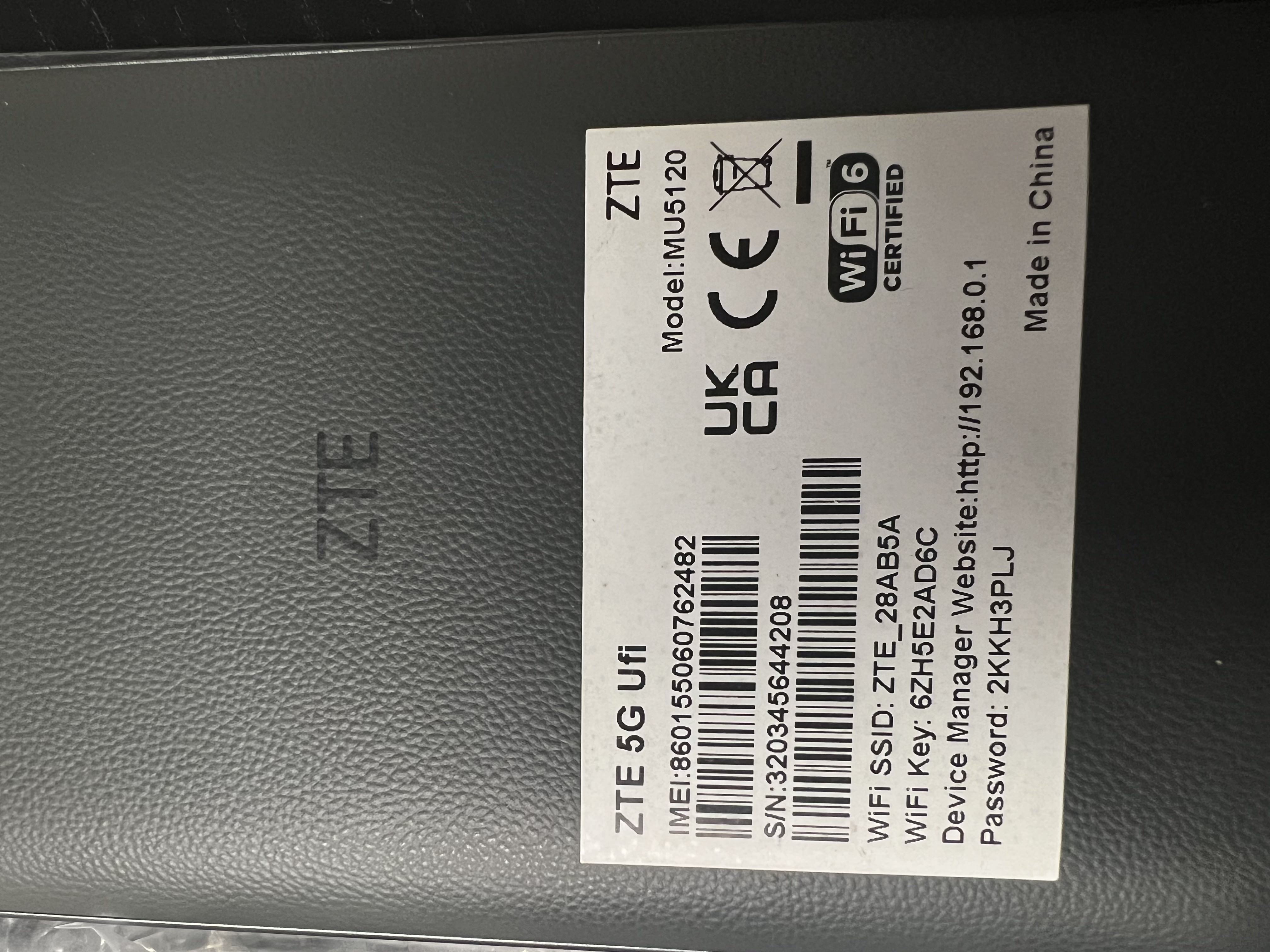
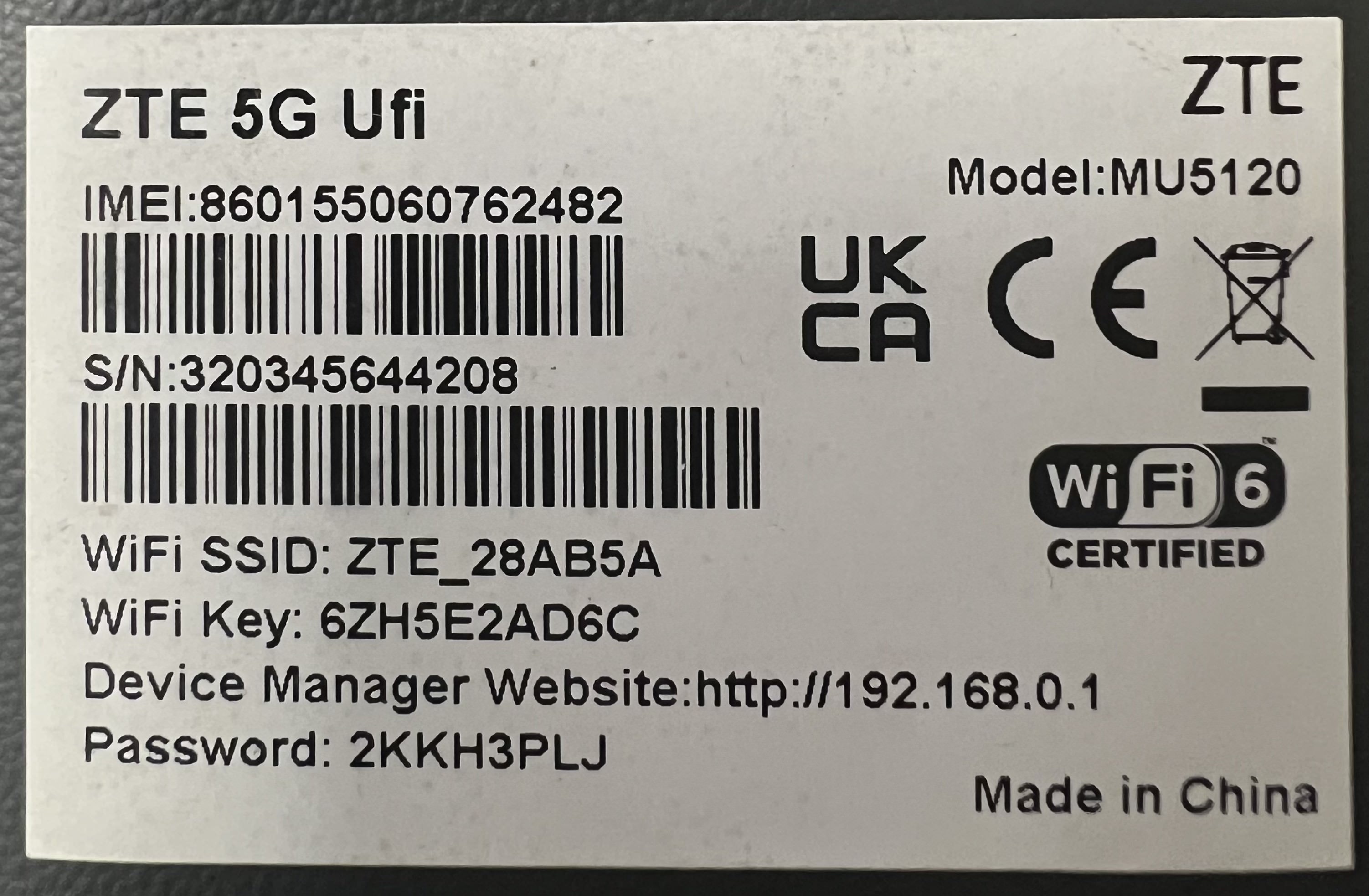
| Item | Purpose | Example |
|---|---|---|
| WiFi SSID | Network name for connecting devices | ZTE_28AB5A |
| WiFi Key | WiFi password for network access | 6ZH5E2AD6C |
| WebUI IP | Portal address | http://192.168.0.1 |
| Password | Admin login credentials (case-sensitive) | 2KKH3PLJ |
The WiFi Key is the network password. The Password is only required for the admin login — not for connecting to WiFi.
Step 3: Connect to WiFi
This step is mandatory — configuration is impossible without a WiFi connection to the router.
- Open WiFi settings on your device.
- Locate the ZTE network name from the sticker.
- Enter the WiFi Key when prompted.
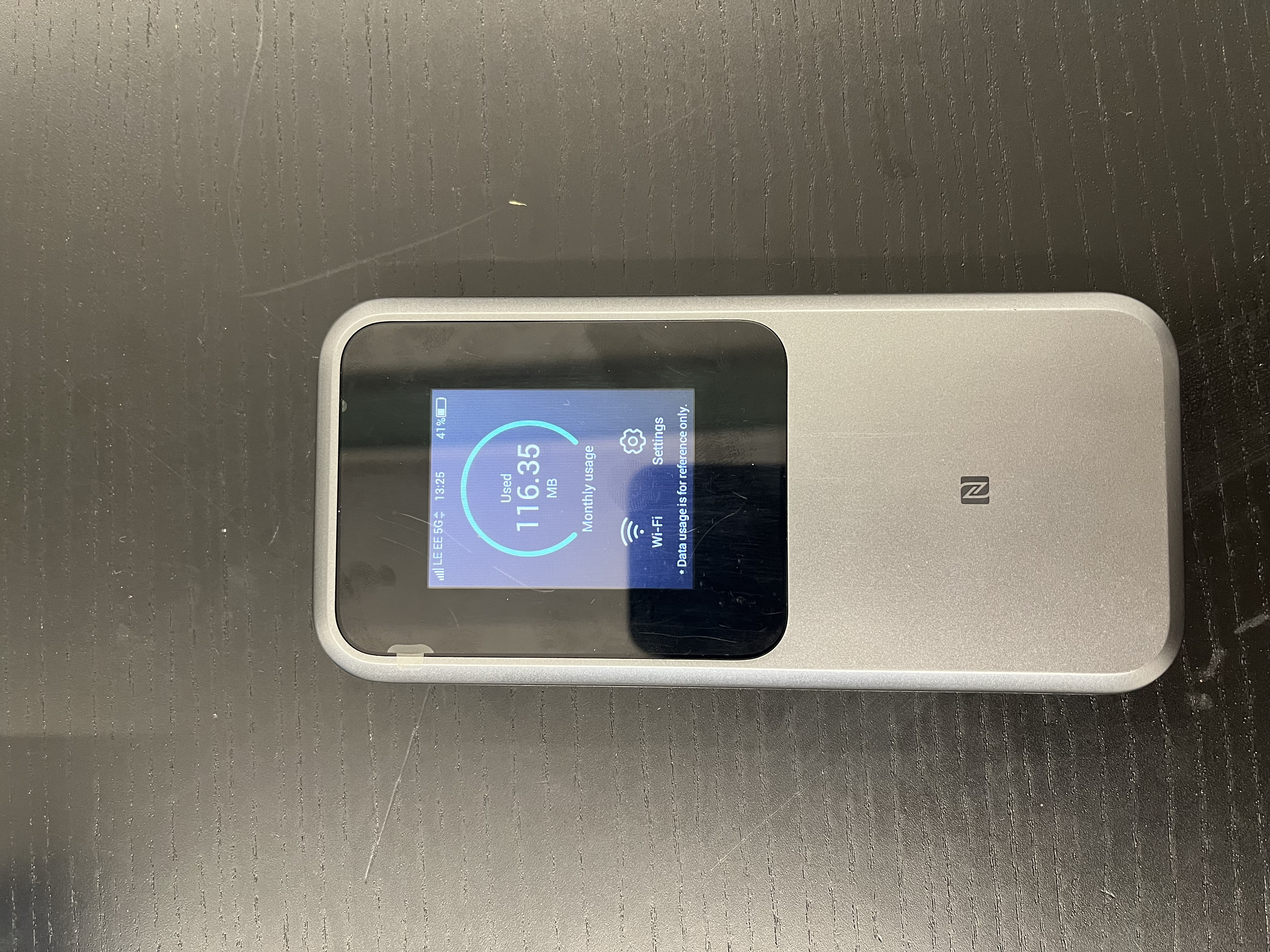
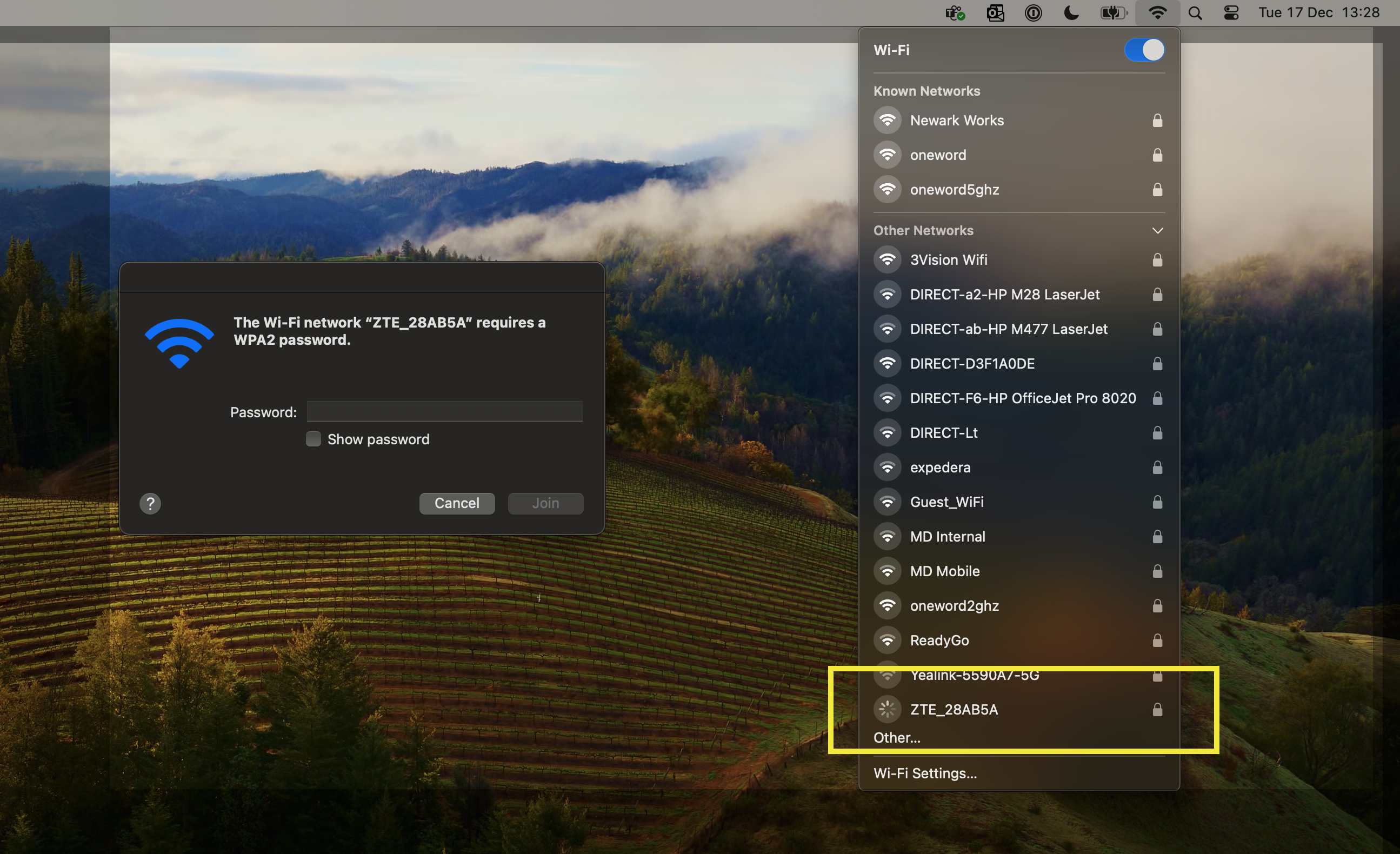
Works identically across laptops, tablets, phones, and operating systems (Apple, Android, Windows).
Step 4: Access Configuration Interface
- Ensure you are connected to the device's WiFi network.
- Open any web browser (Safari, Chrome, Firefox, or Edge).
- Enter
http://192.168.0.1in the address bar (not the search field). - Enter the password from the sticker.
- The dashboard appears upon successful authentication.
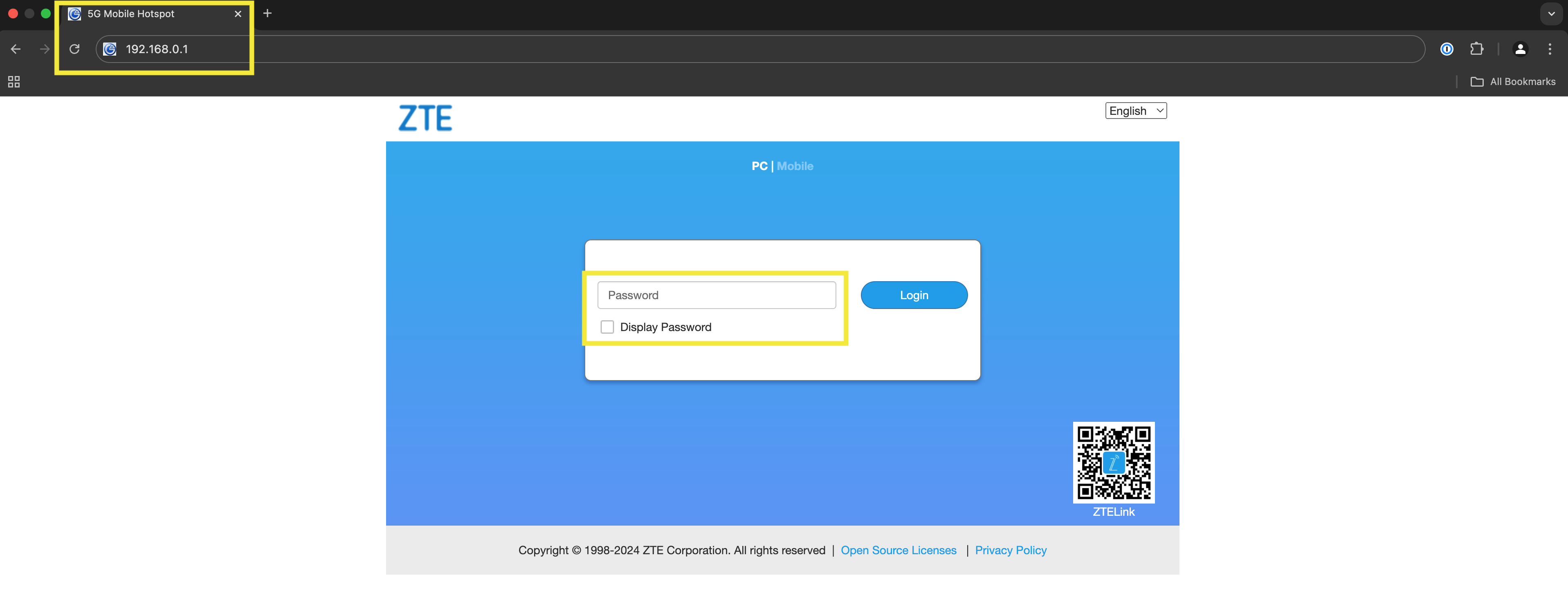
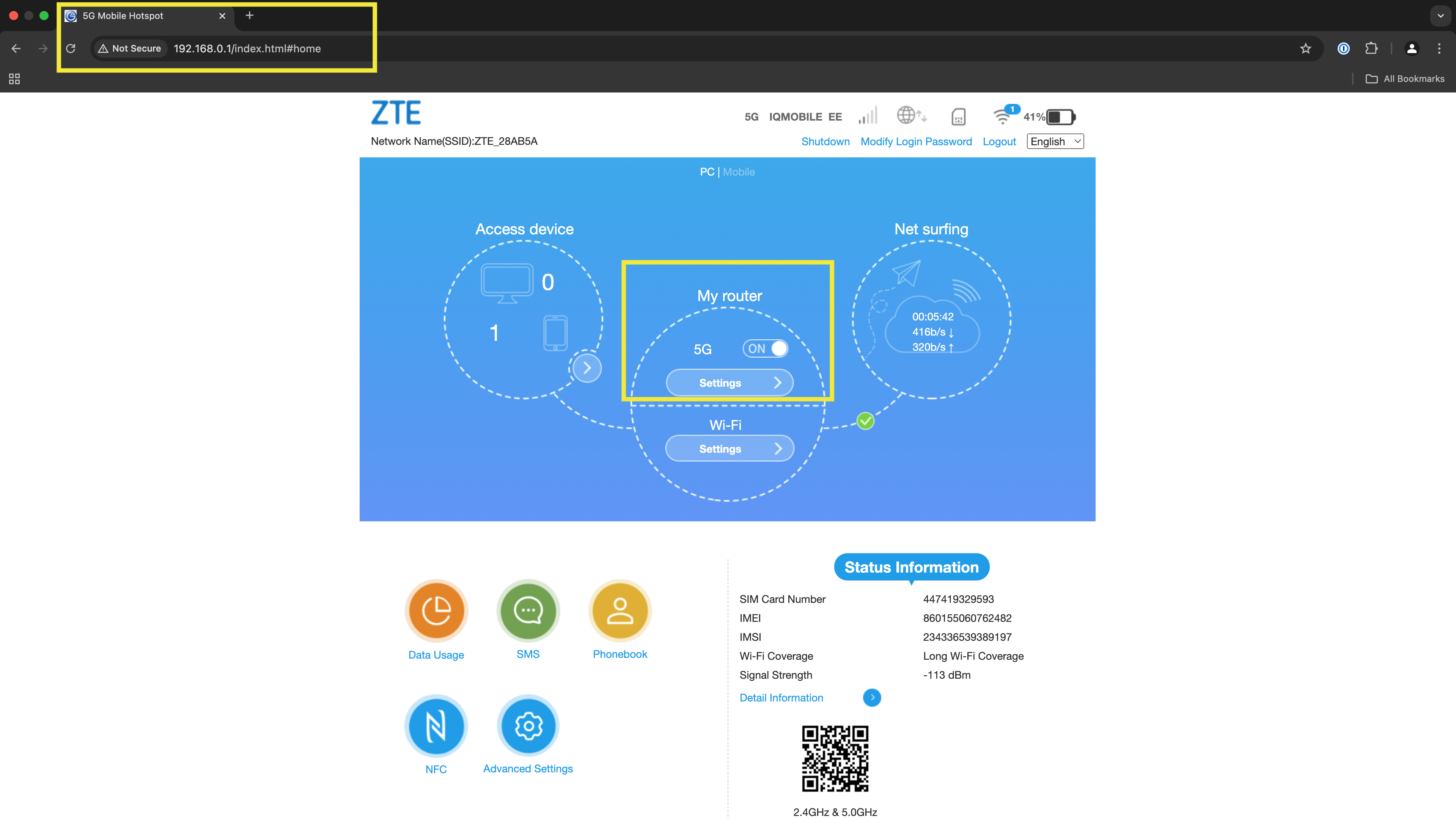
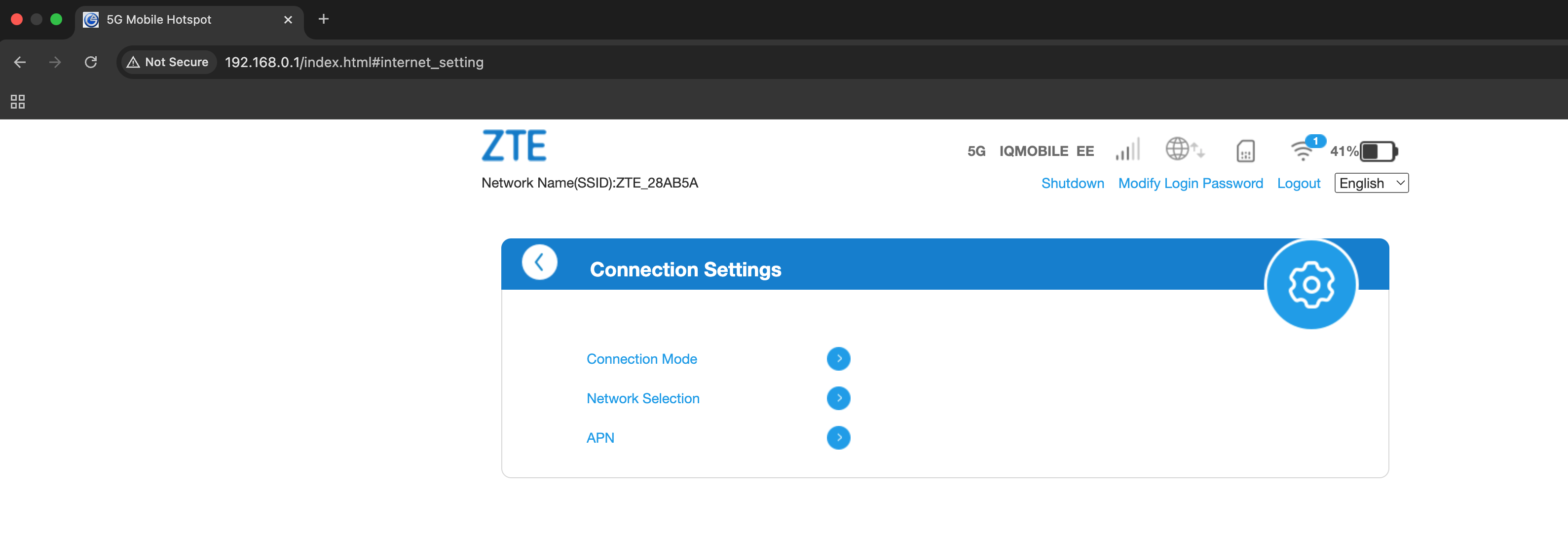
5G Configuration Settings
Connection Mode
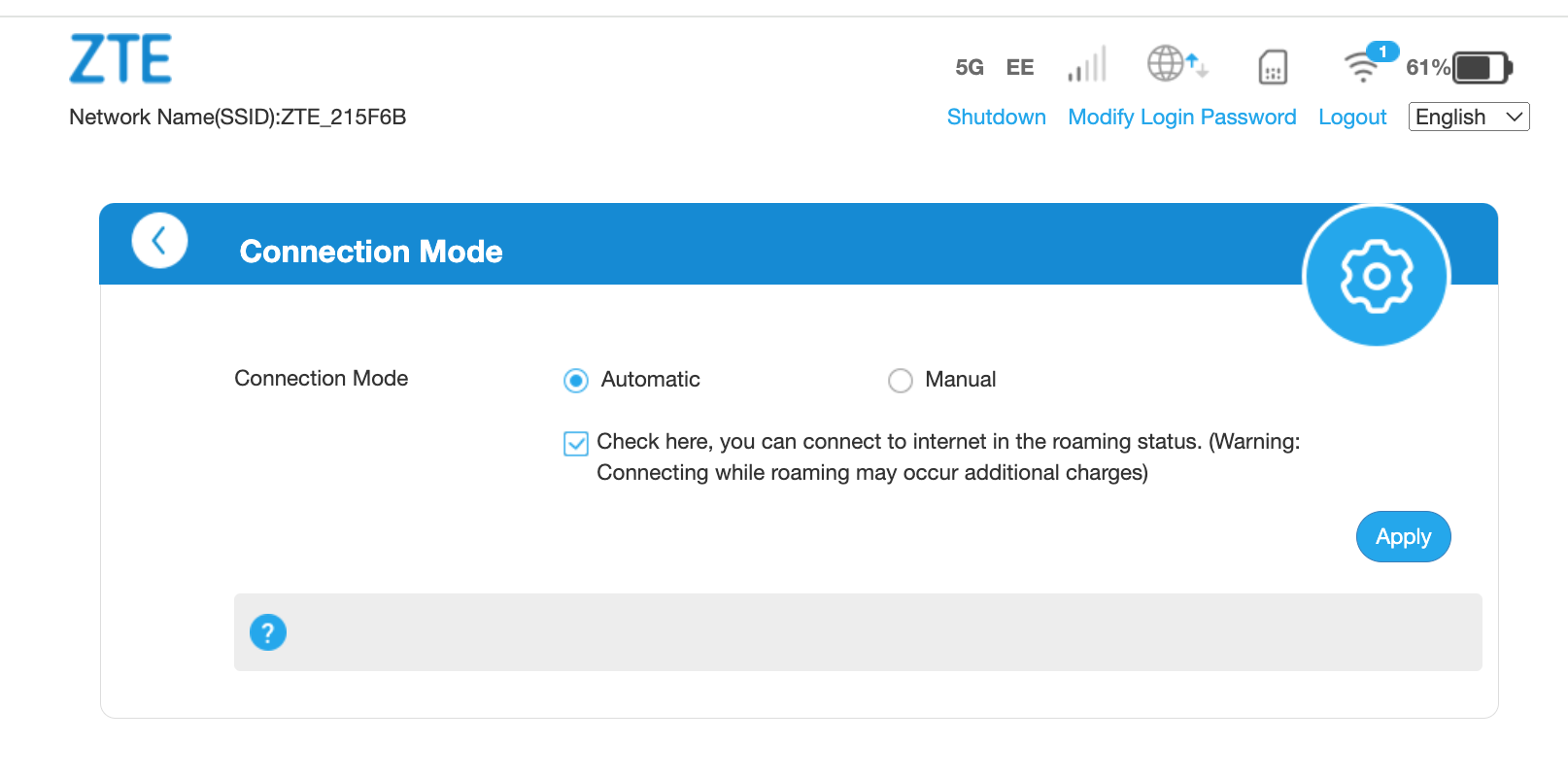
Enable the roaming checkbox for European data access. IQ Mobile data SIMs include "roam like home" service across Europe without roaming charges.
Charges may apply outside Europe — consult additional IQ Mobile help articles for details.
Network Selection
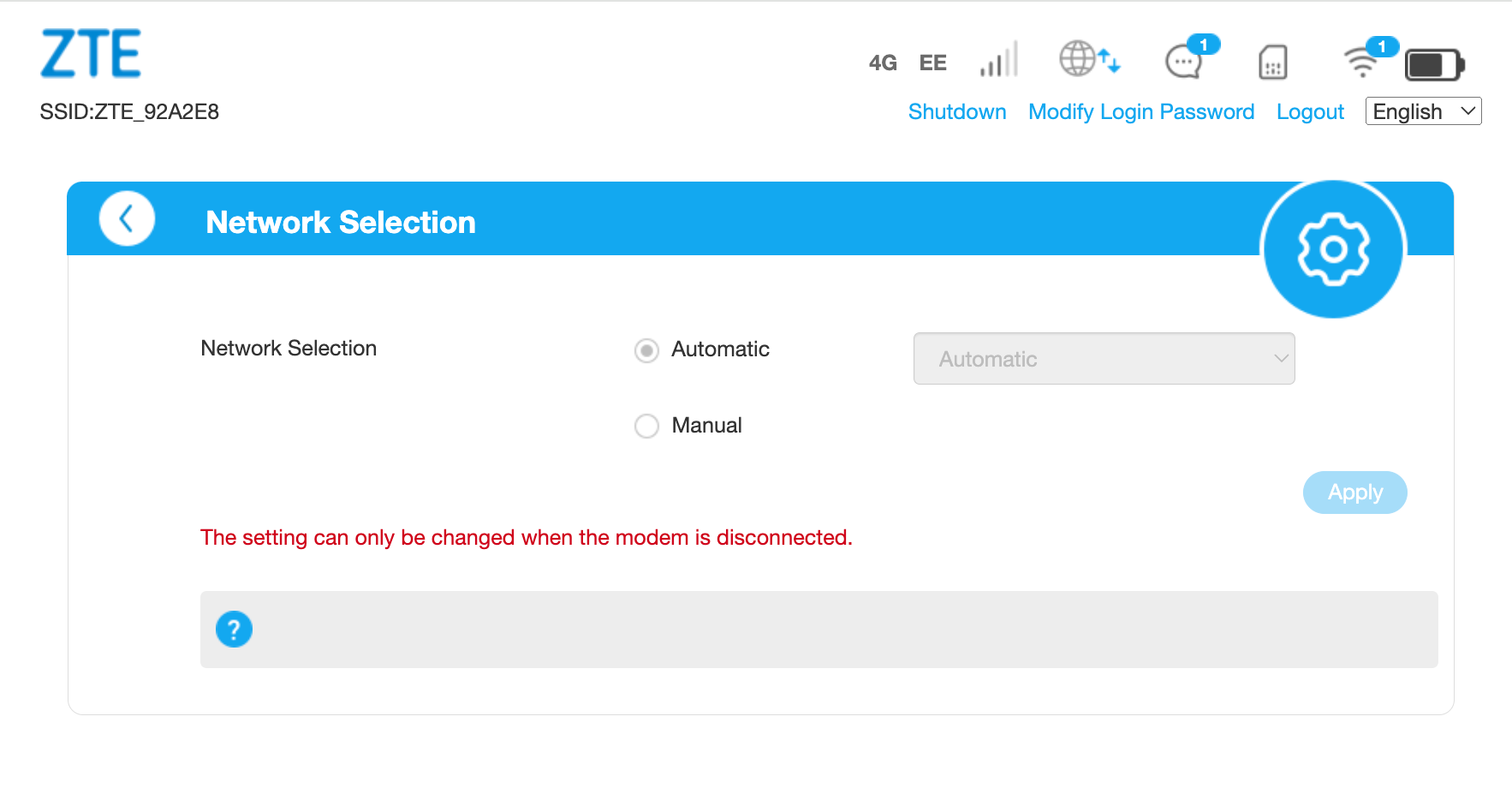
This manual override allows selecting specific networks when roaming — particularly useful when the automatic connection chooses a suboptimal provider. For example, in Spain, manually selecting Movistar over Orange may provide better service.
Remember to return to automatic selection after manual configuration. This step is optional but beneficial when roaming.
APN Settings
The device automatically detects settings with these standard values:
| Field | Value |
|---|---|
| APN | everywhere |
| Authentication | PAP |
| Username | eesecure |
| Password | secure |
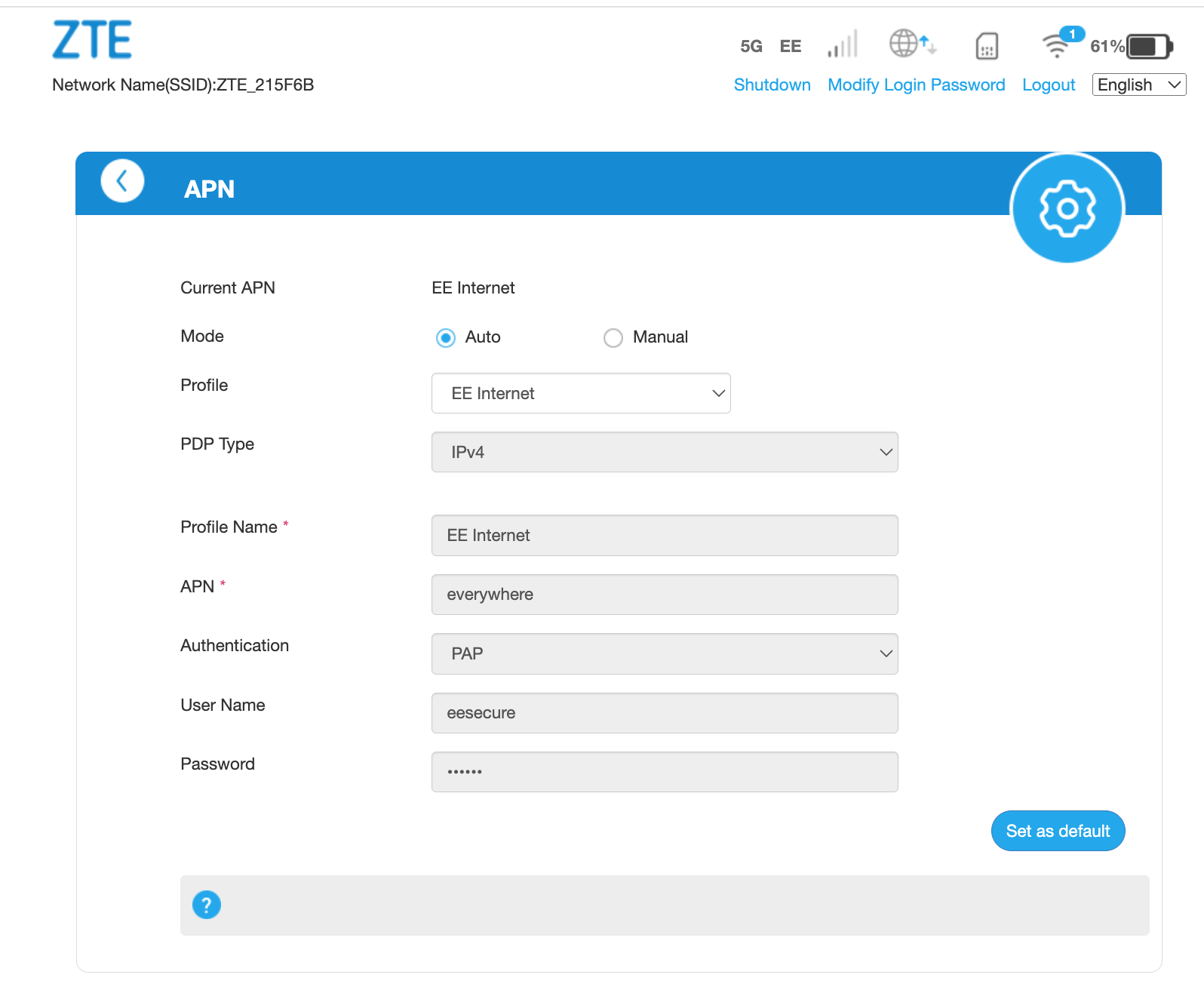
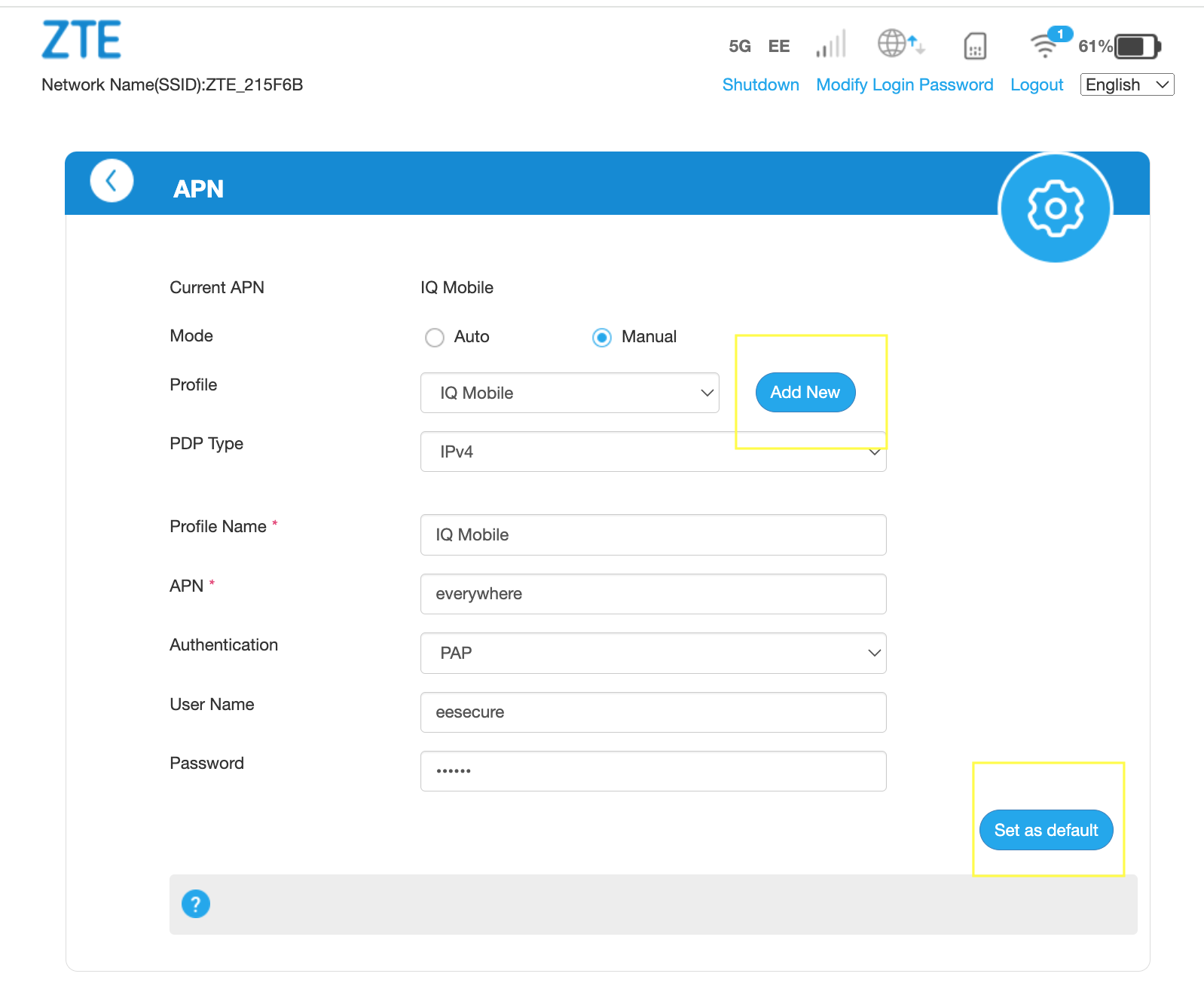
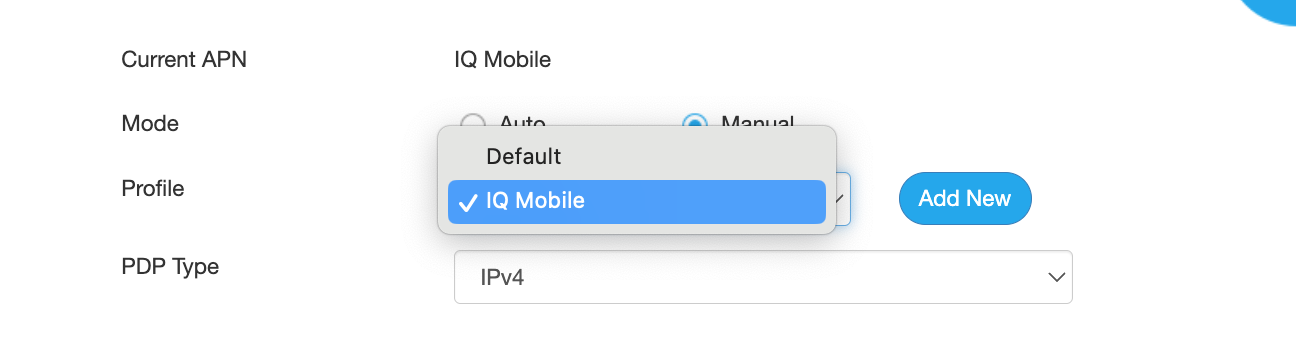
You can add additional APN profiles using the "Add New" button, store multiple profiles, and switch between them as needed.
Need a SIM for this router?
Every router in these guides takes a standard data SIM. Touring in a caravan or motorhome? A Travel SIM keeps you online across Europe too.
Still need help?
Our UK-based team is here for you